Layouts & Regions
Arrange thoughts for you, filter by type, and group them in regions.
Arrange modes
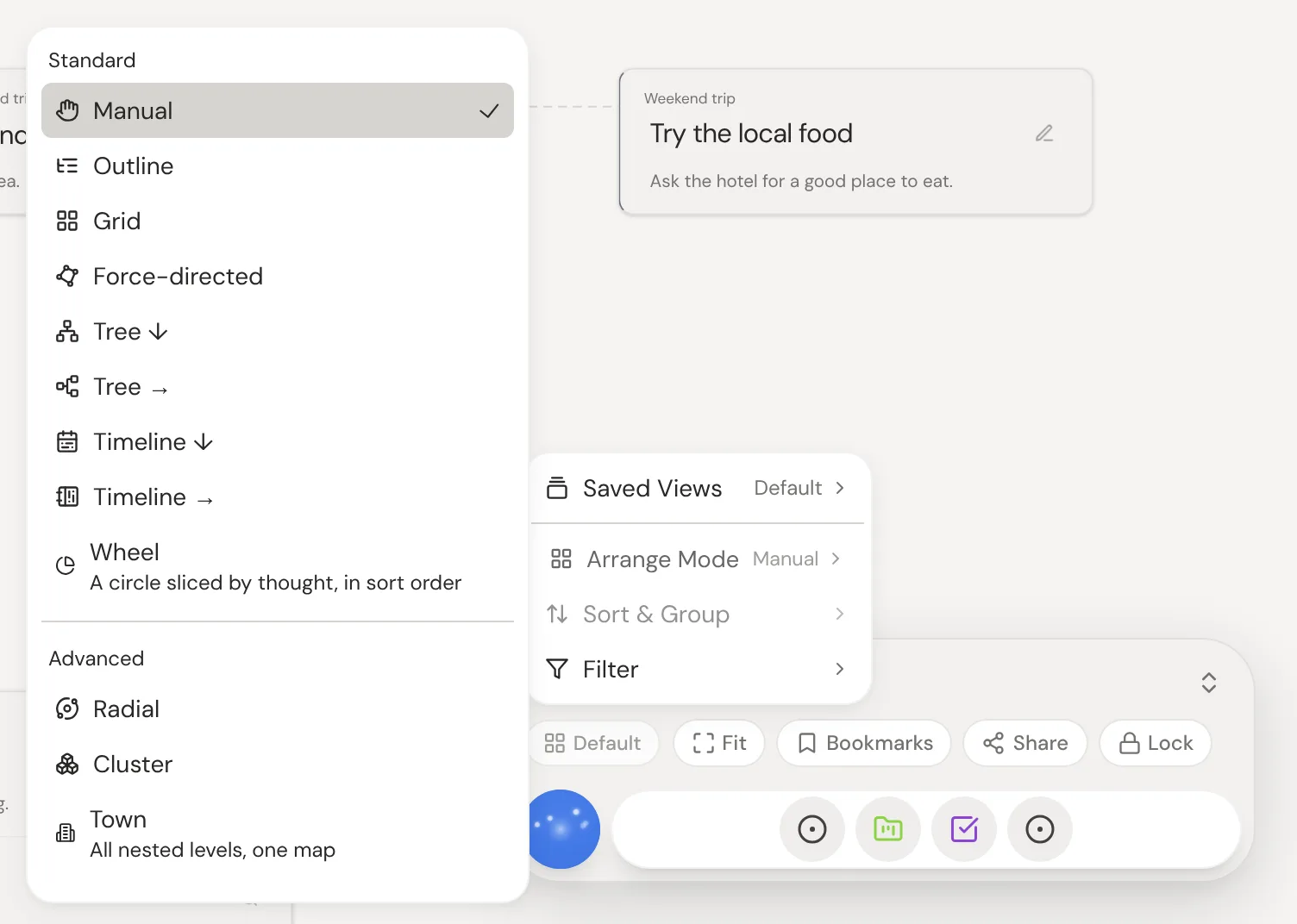
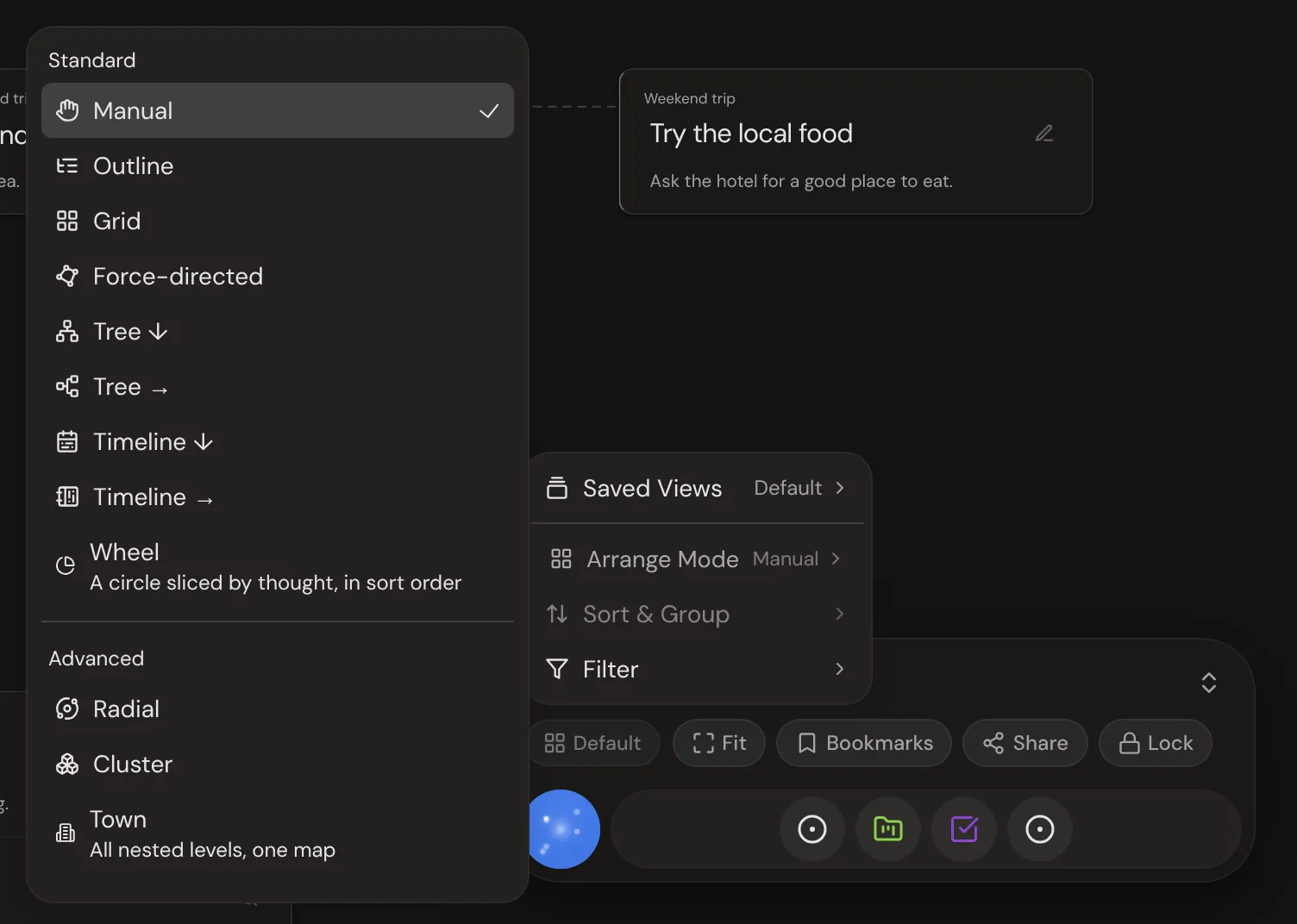
Click the view chip in the panel at the bottom right, then Arrange Mode, and pick one: outline, grid, tree, timeline and more. Choose Manual to get your hand-placed layout back. A blue icon on the chip means a mode, sort, group or filter is on.
Timeline modes
Timeline ↓ stacks dated thoughts like a journal, newest on top, and Timeline → runs left to right, oldest first. Click a + on the date rail to add a missing day. In Timeline ↓, scroll anywhere on an entry to keep reading; long lists scroll to their end first.
Town view
Town view shows every level of your garden on one map, with busier thoughts showing more detail sooner. Your thoughts circle the middle clockwise from 12 o'clock, oldest first, and the thoughts inside each one fan out around it in list order. A new thought takes the next spot.
Wheel view
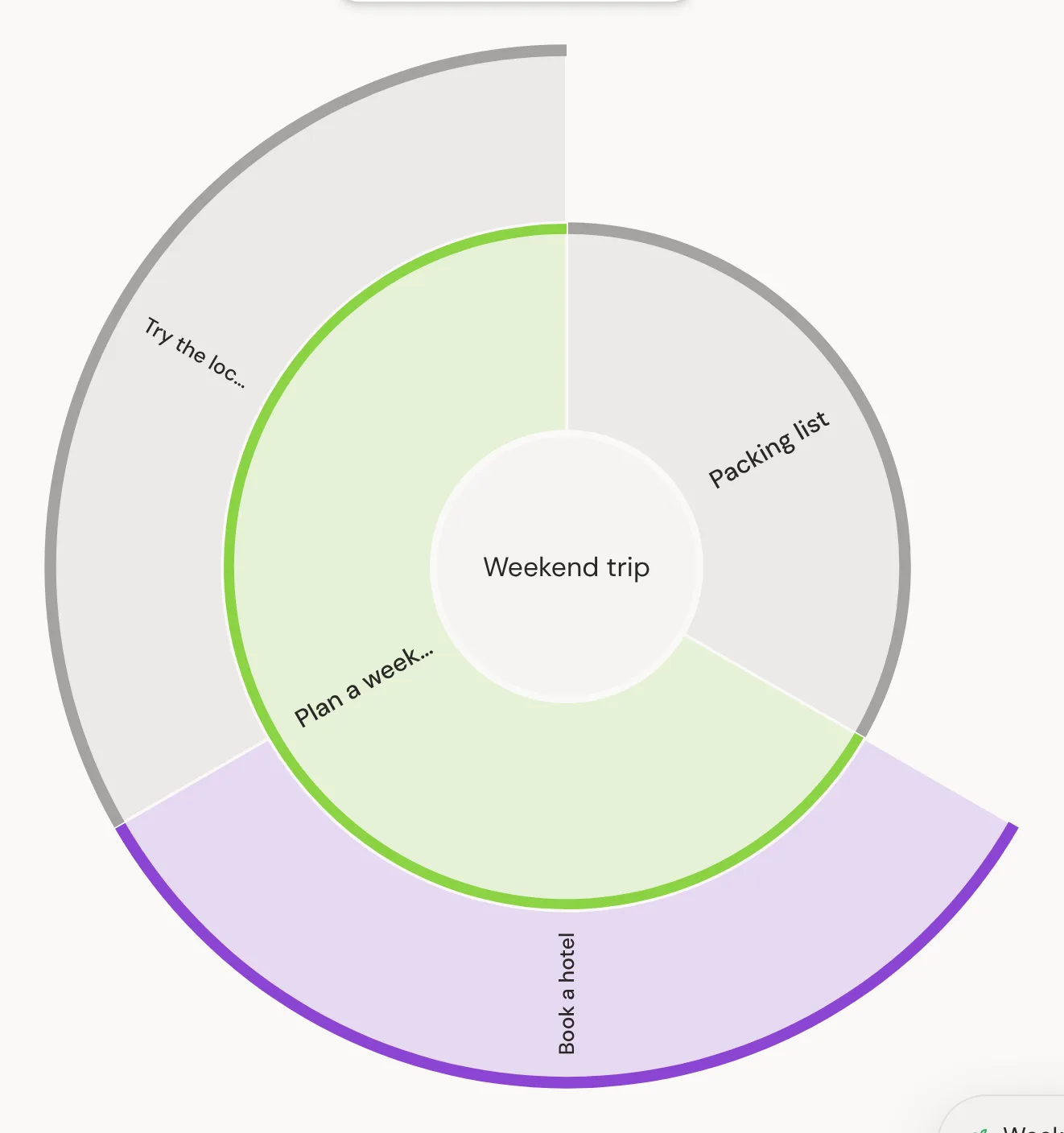
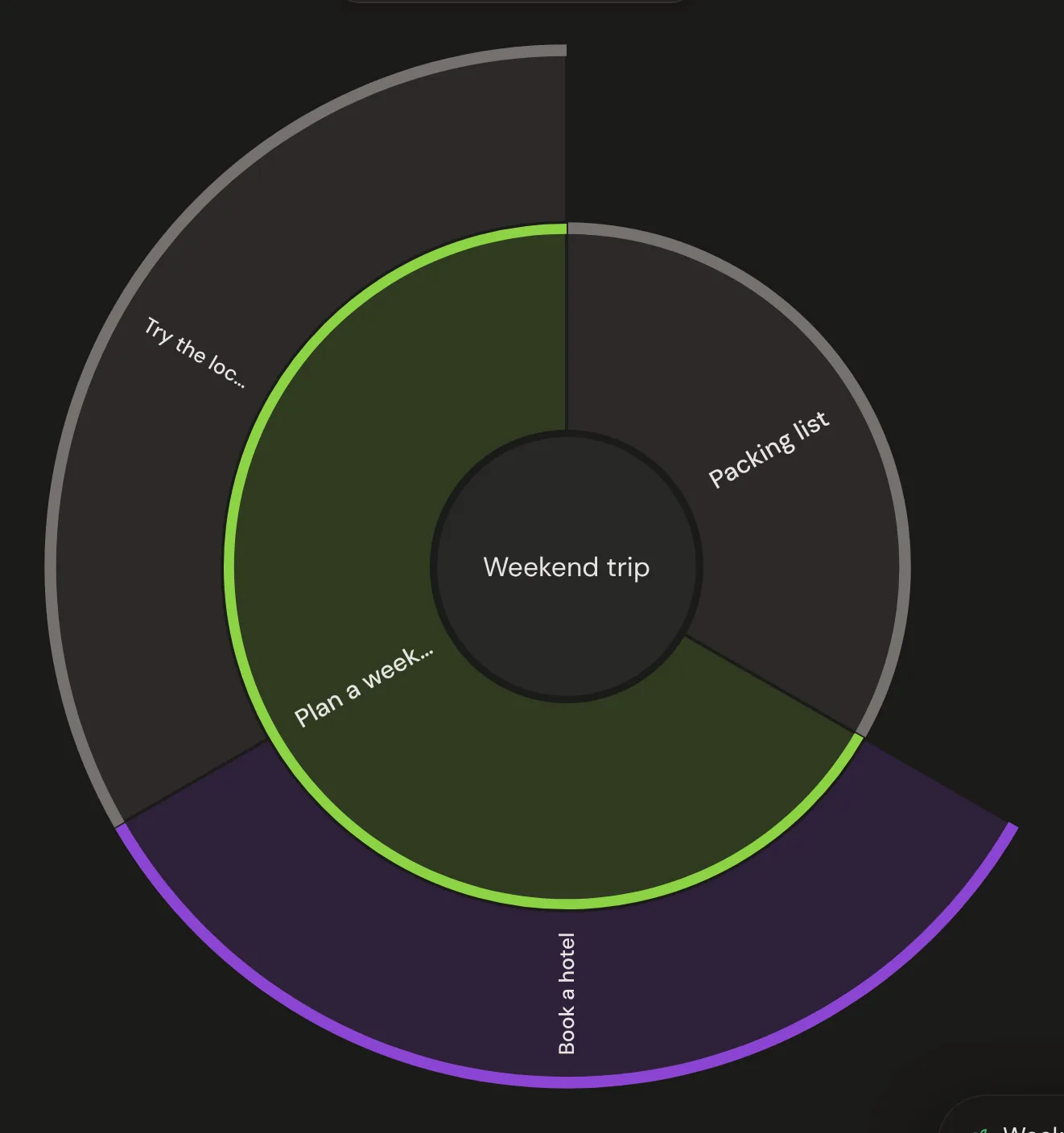
Wheel draws your garden as a circle, one slice per thought, in your sort order, and sorted by color each slice sits at its color. A thought a connection points to sits on the ring outside it. Select a slice to open it in the panel.
Filtering by type
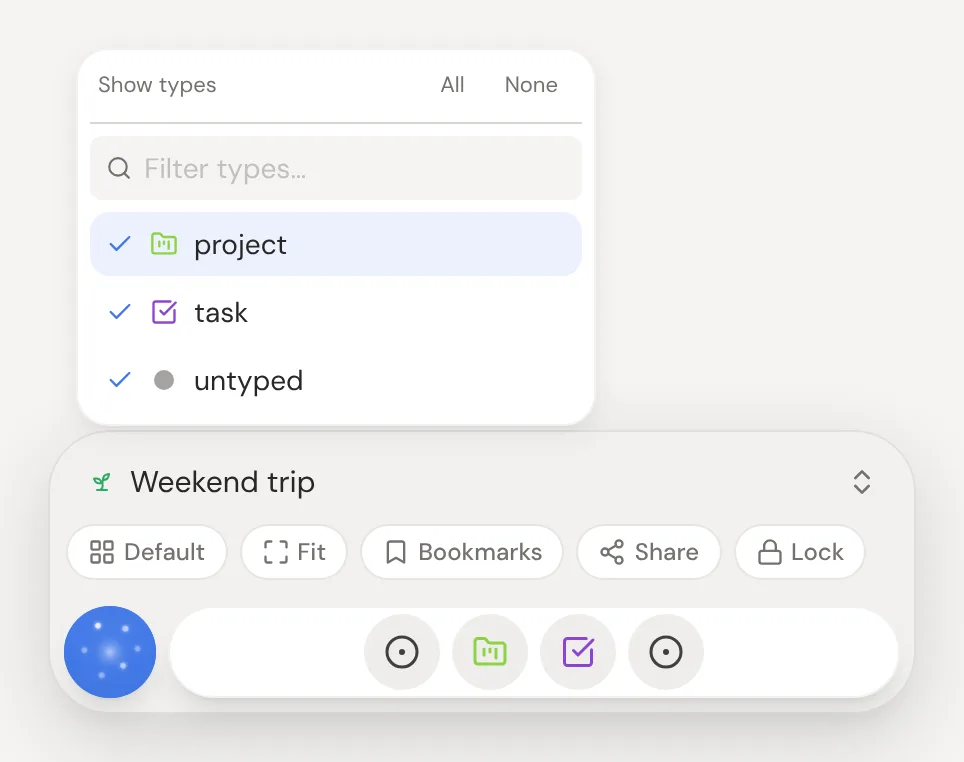
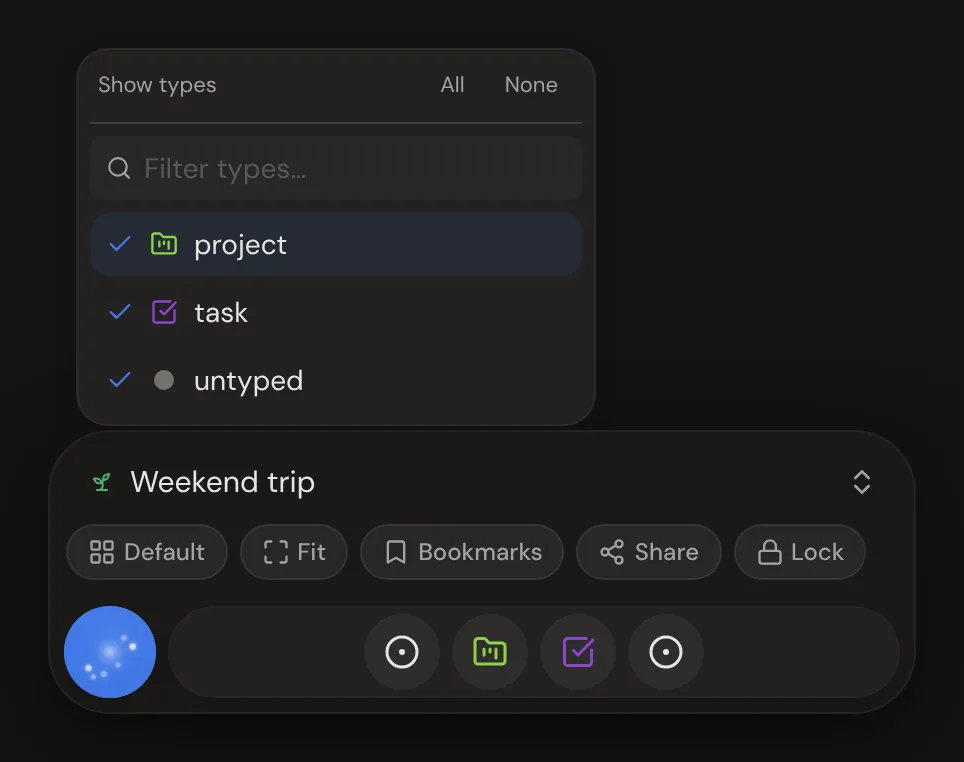
Click the view chip in the panel at the bottom right, then Filter, and untick a type to hide those thoughts. Type to find one, then press Enter to tick or untick it. Nothing is deleted: All brings everything back, and each layout keeps its own choice.
Color regions
Right-click the canvas and choose Add Color Region to draw a named, colored area. Thoughts you drop inside belong to it, and dragging the region moves them all. Click the icon at its top-right corner to arrange the thoughts inside.
Focus dimming
On a computer, when you select a thought, everything except it and its neighbors fades a little. Click empty canvas to bring everything back.
Canvas background
Faint rings around the center show how far you've moved. Type zones add a soft glow behind each type's busiest thoughts. To turn them off, or to tune zooming, panning and lines, switch on the canvas control menu in Settings → Advanced.