Fields
Give a type the fields its thoughts fill in.
Adding a field
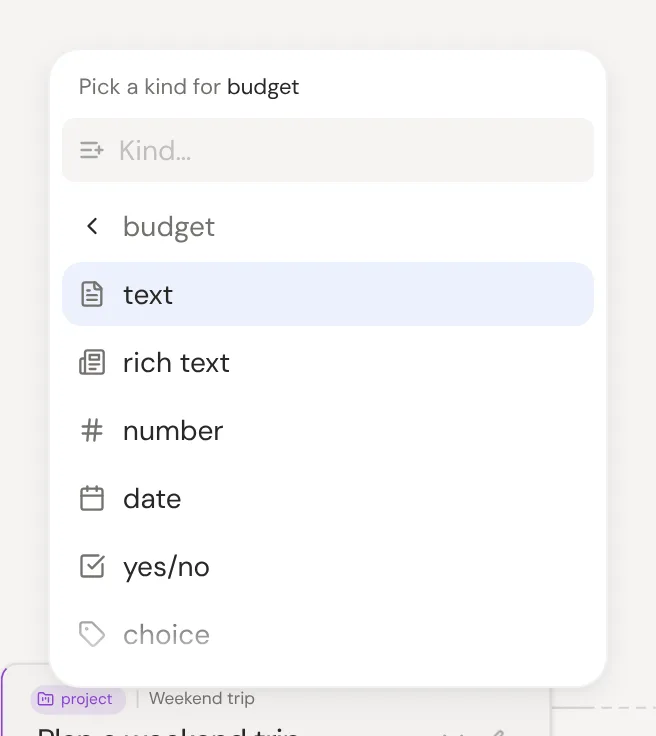
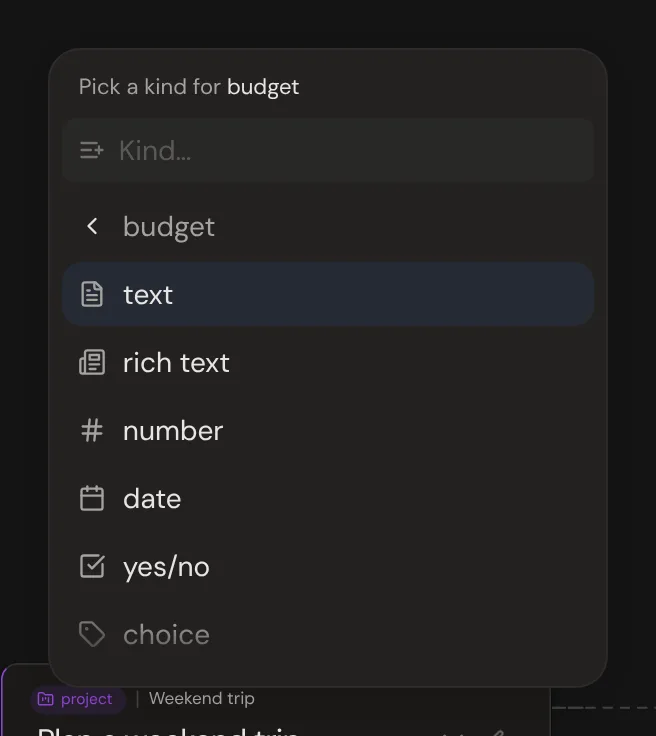
Each field is a thought inside its type. On the type's card or in its side panel, click the + under its fields, name it, and pick its kind: text, a number, a date, yes/no, a choice, a link and more.
One name, one field
A field's name is the same field on every type that uses it. Type a name one of your types has, and that field is the top row: press Enter to add it. For a field with other settings, pick another name, like taskStatus and projectStatus.
A field's page
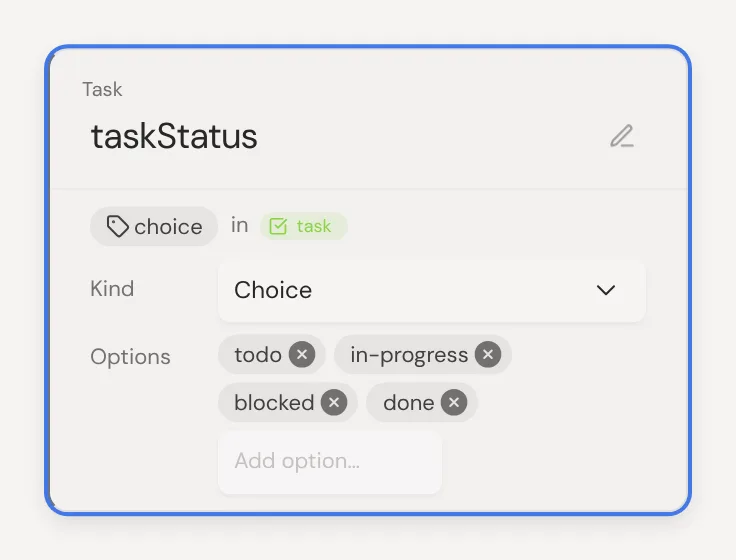
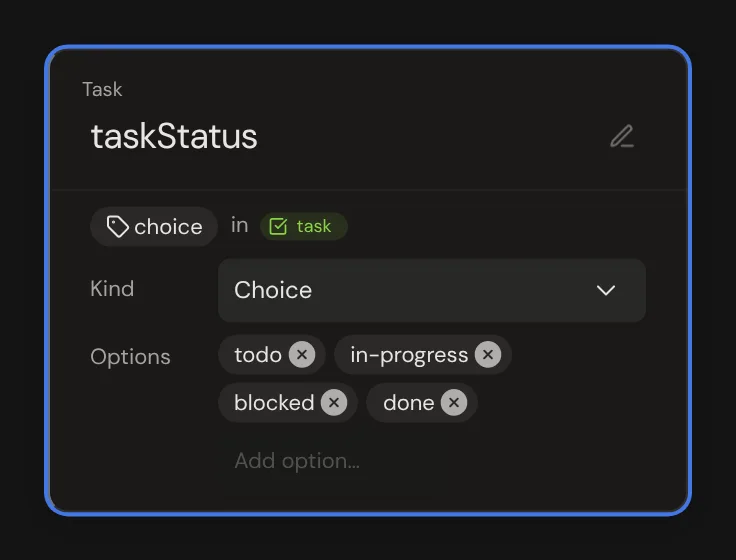
Open a field to see its kind and the types that use it. Change its kind or settings there, like a choice's options, and every thought of those types follows. Rename it like any thought.
Hiding or requiring a field
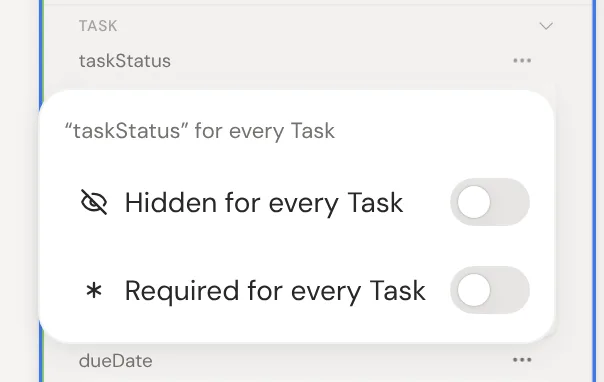
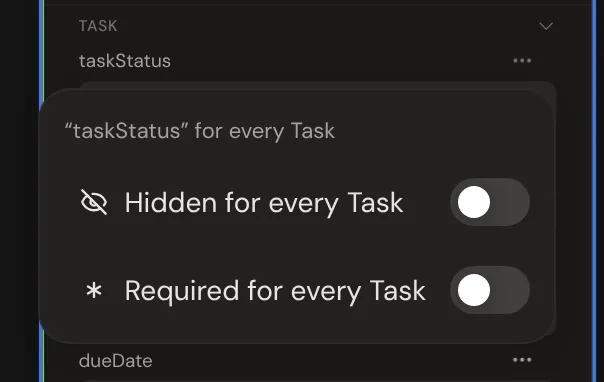
Edit a thought and click the ⋯ beside a field's name. Switch on Hidden to keep that field out of view on every thought of the type, or Required to mark it as one to fill in.
Deleting types and fields
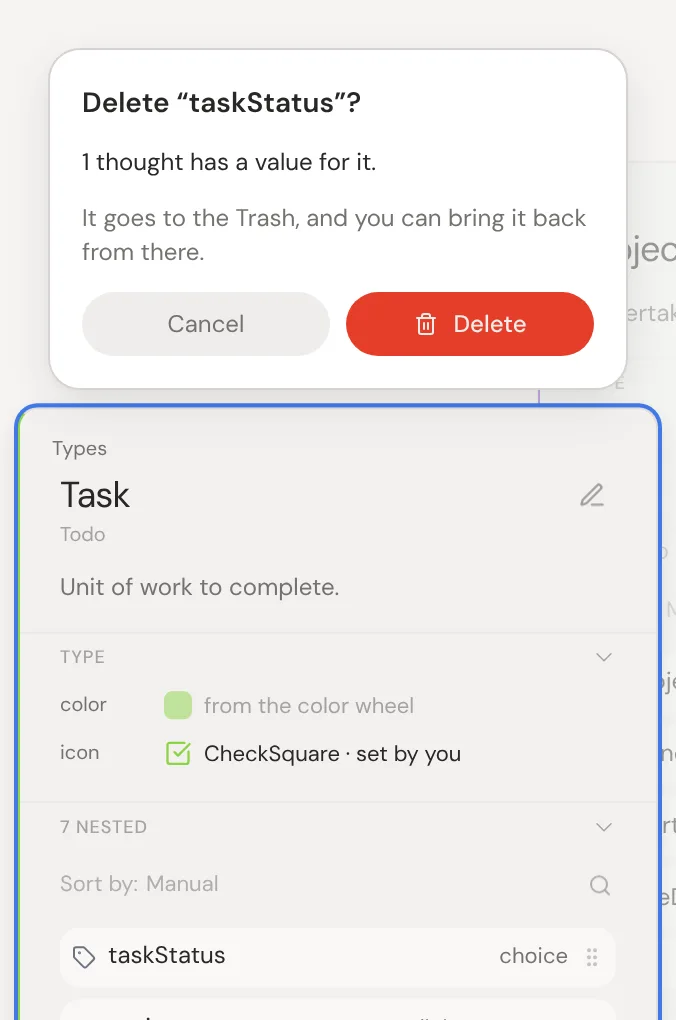
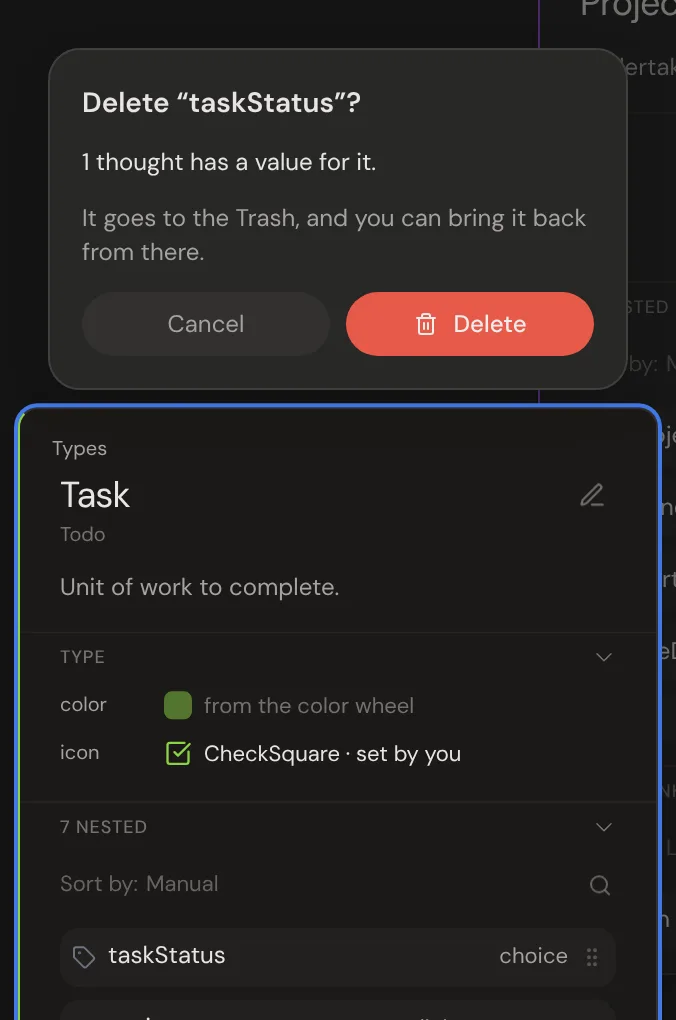
Before a type goes, Delete says how many thoughts use it. Before a field goes, it says how many have a value for it, and which other types still have it. Every thought keeps its values, under Kept values.
Fields that hold thoughts
Pick a type as a field's kind, like Person for an author, and the field links to thoughts: click Add, type a name, and pick one or make it. A thought you pick becomes a Person too, if it isn't one yet. Click or tap a link to go there.
Dates on a Day's page
Pick a day in a date field, like a task's dueDate, and the thought shows on that Day's page. The date shows as a link with a calendar icon: click or tap it to open that day.
Linking to several types
Open a link field and click To. Tick each type it can hold, like Person and Org for a creator. Picking a value lists thoughts of those types first, and picking any other thought asks which type it becomes.