Files and PDFs
Add pictures, PDFs and Markdown files, and view them.
Adding a file
Drag a picture, a PDF or a Markdown file onto the canvas, or copy it and paste it. On iPhone and iPad, you can drag one in from Photos or Files. Each file becomes a thought.
Seeing a picture full screen
Click the expand button on a picture to see it full screen. It's on Image thoughts and on pictures in your notes. Pinch or double-click the picture to zoom in, then drag to look around.
| Shortcut | Action |
|---|---|
| Cmd/Ctrl + K, then View image full screen | View the selected thought's picture |
A PDF in your notes
Type /pdf in a thought's notes to add a PDF, or drag one in. It sits in the notes like a picture. To remove it, click the × on it while you edit.
Reading a PDF
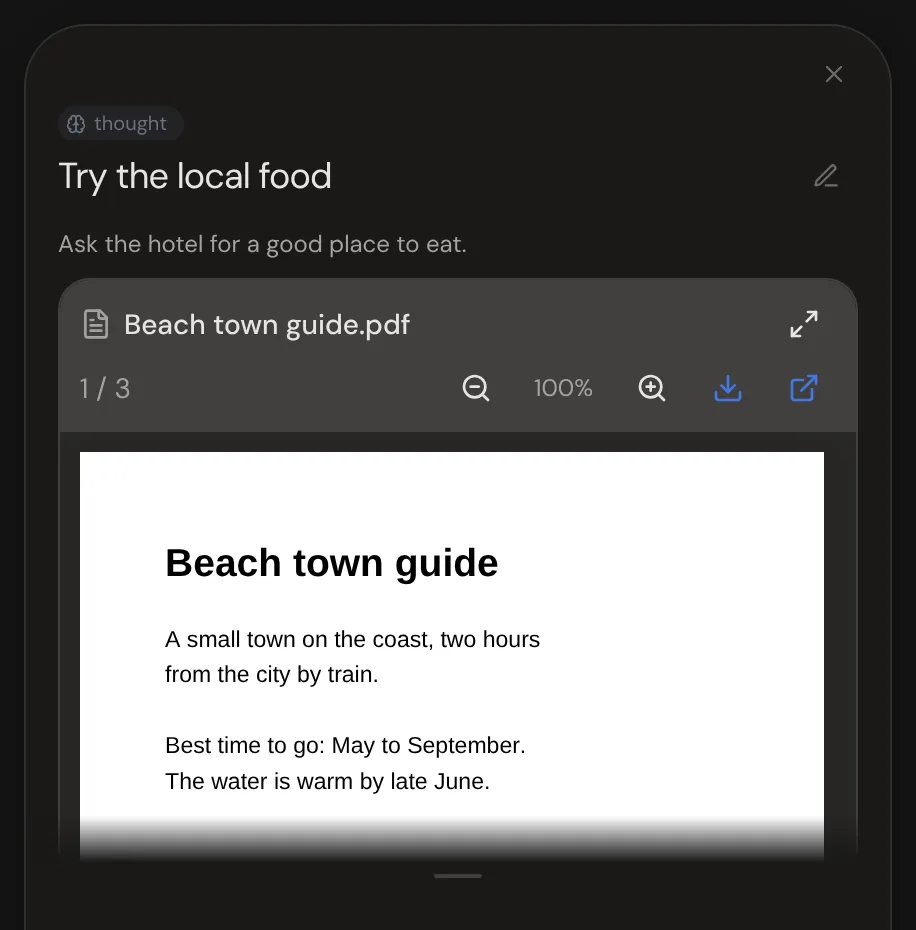
Click the PDF on a card to read it full size. In the side panel, it opens right in the notes, so you can write while you read. You can select its text, and find words on the pages you're reading with your browser's search.

| Shortcut | Action |
|---|---|
| Cmd/Ctrl + K, then Open PDF | Open the selected thought's PDF |
Asking AI about a PDF
Select a thought with a PDF and ask the AI about it, like "Summarize this". The AI reads what's inside the PDF. With AI autofill on, a PDF you drop also gets a type, like Book or Article.
Asking about a long PDF
For a book, name the part you mean, like "What does chapter 12 say?" or "Explain pages 40–55". The AI reads just that part. Otherwise it reads the start.
Markdown files
A Markdown file becomes one thought. Its first heading is the title and the rest goes into the notes. Links in double brackets come in as plain text.
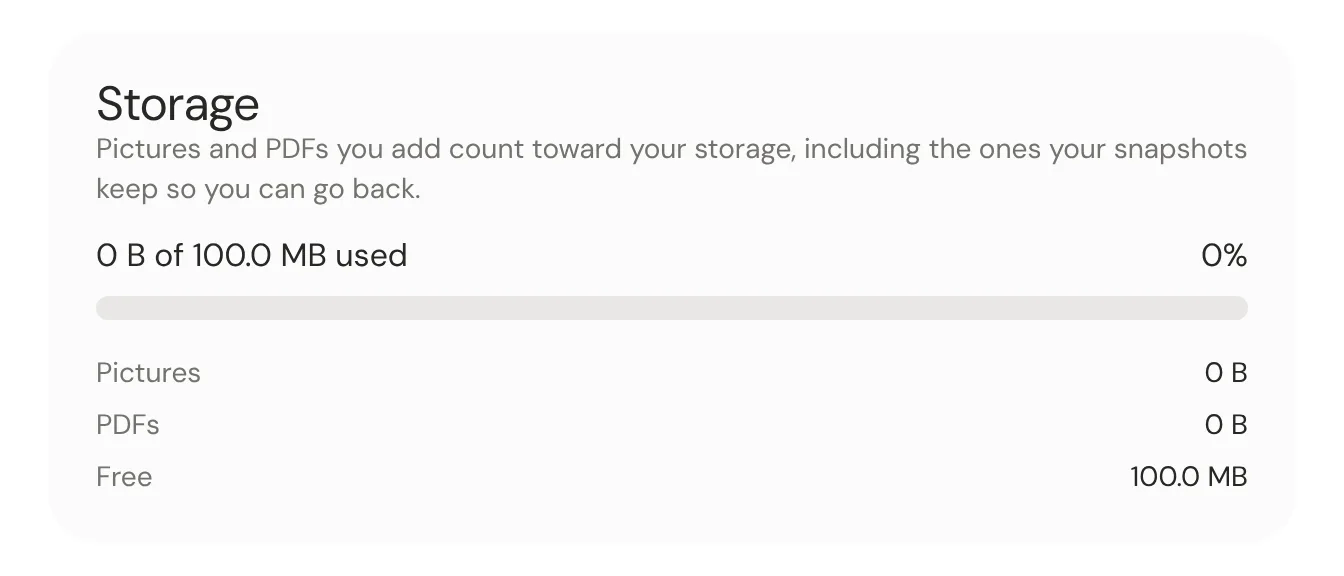
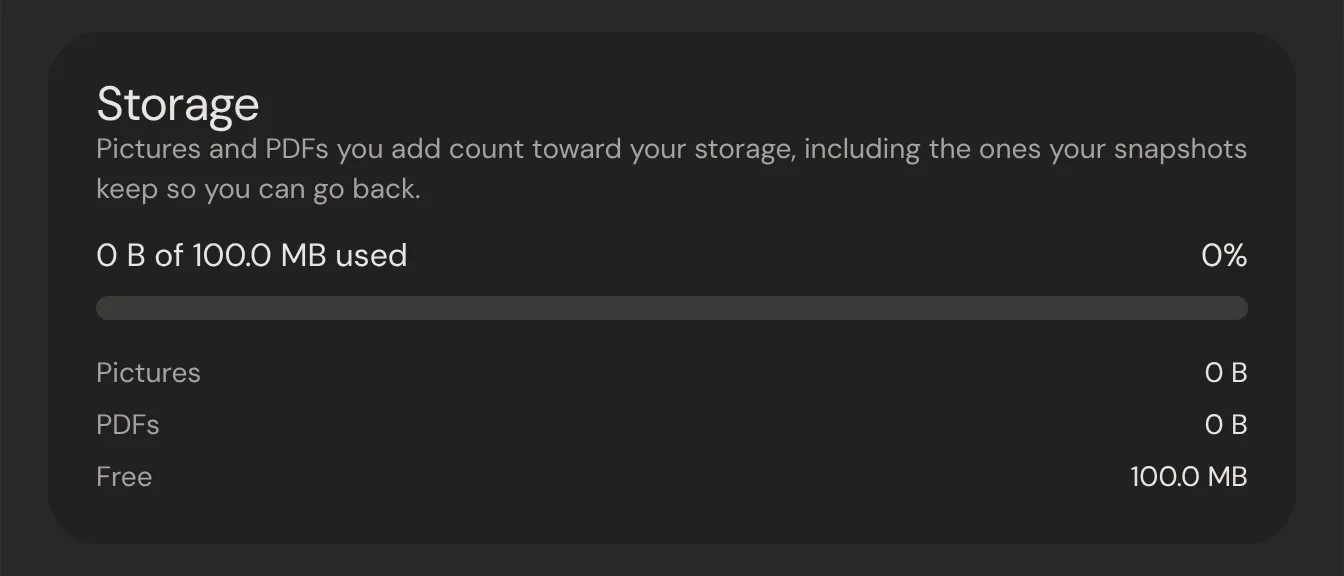
Storage space
Your files share 100 MB, and a file you already have takes no more. A PDF can be up to 25 MB and a picture up to 5 MB. Settings → Storage shows what you've used, and if a file doesn't fit, a window shows what's left.