Import & Export
Move your thoughts in and out, and keep backups.
Exporting your garden
Click Share at the top right, then Import & Export. Export JSON saves the garden you're in, nested thoughts included; the arrow beside it offers ZIP (with pictures), Markdown, OPML and CSV, for gardens shared with you too. The file isn't locked, so anyone who has it can read it.
Importing data
Click Import and pick a file: our JSON or ZIP, Obsidian canvas, Roam, Logseq, XMind, Cytoscape, D3, JSON Graph, OPML, CSV, Markdown or any JSON. It lands in one new thought named after the file. Keep nesting picks how many levels stay nested; deeper ones become lists in notes.
Importing a folder or zip
Pick several files, choose Folder… from the arrow beside Import, or drop a folder or .zip on the panel. Each note comes with its pictures, and links between notes stay links. A link to a note you didn't import shows crossed out until you tap it to create one.
The preview's questions
When a file could be read two ways, the preview asks and remembers your picks, or Suggest with AI answers for you. For a new type, choose Create or Skip. A type named like yours but with other properties comes in new, unless you choose Use your type.
Full account backup
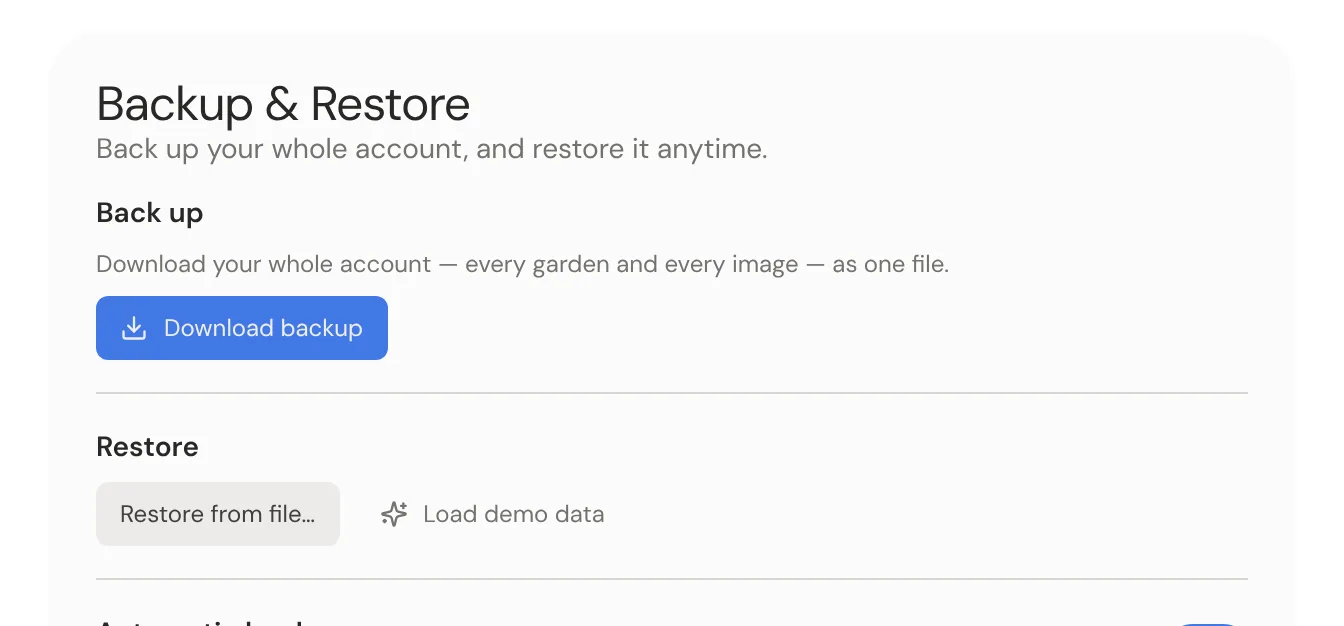
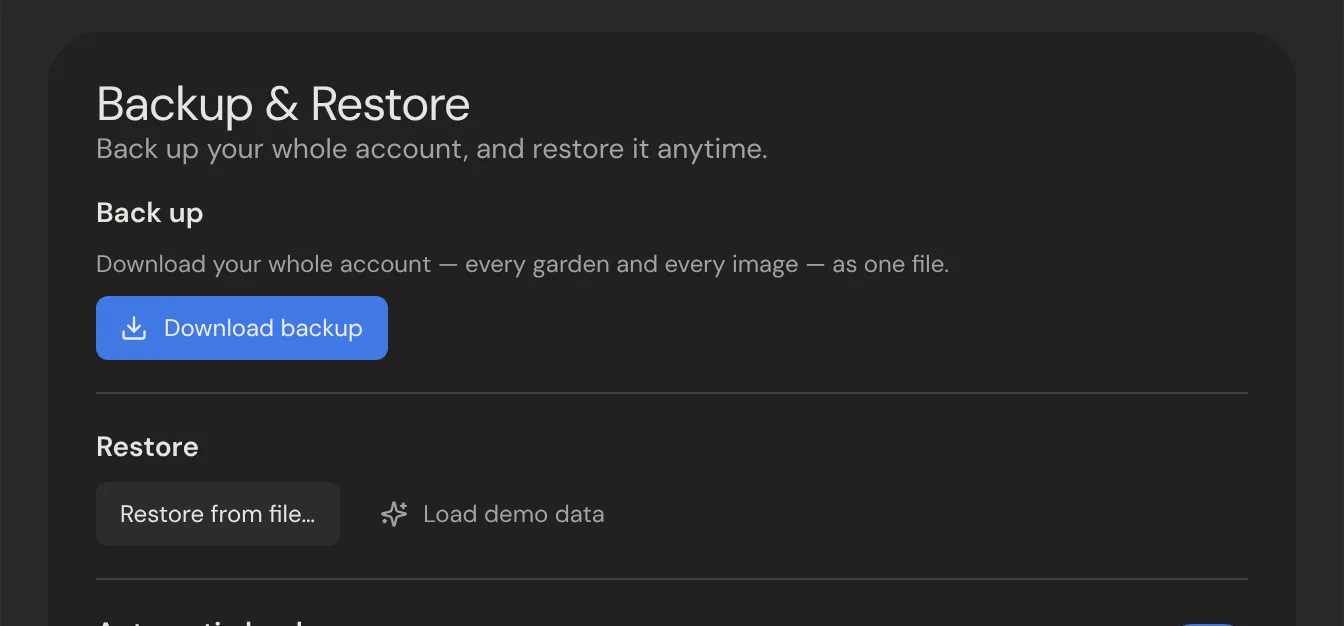
Settings → Backup & Restore saves your whole account in one file: every garden, every nested thought, your types and every image. Click Download backup to keep a copy, which the iPhone app puts in Files. The file isn't locked, so anyone who has it can read it.
Automatic backups
Turn on Automatic backups and Neural Garden saves a snapshot with your account every 6 hours, daily or weekly, keeping the last 7. You'll see them on any device you sign in on. Their images count toward your 100 MB of storage.
Restoring a backup
Restore from file adds everything in a backup, images included, without removing or duplicating anything. For your own snapshots and .zip backups, Reset to this point puts your account back exactly as it was at that moment instead.
Markdown folder mirror
The mirror keeps a copy of your thoughts as Markdown files in a folder you pick, such as Dropbox, iCloud Drive or git, with pictures beside the notes that use them. The iPhone app can use its own folder in Files instead. It only goes one way.